 BUCKLOCK™
Allow access
When prompted, allow Camera, Microphone, and Photos access. BuckLock needs these permissions to detect, record, and save video.
Set up your iPhone, choose how BuckLock detects and records deer, and learn what every camera control does before heading into the field.
When prompted, allow Camera, Microphone, and Photos access. BuckLock needs these permissions to detect, record, and save video.
Secure the iPhone horizontally and point it toward the trail, lane, or opening where you expect the deer to appear.
In Camera Settings, choose a Starting Zoom from the available values. Use 1× for a wide view and keep Starting Zoom no higher than Maximum zoom. Automatic zoom can move closer after detection.
A flashing green status dot beneath the white antler logo means BuckLock is scanning. Keep the app open and the camera view unobstructed.

Hold your iPhone in landscape. Tap the three lines in the upper-right corner to open the Camera Settings panel on the right. Scroll within the panel to see the lower settings.
The small white BuckLock antler logo appears above the status dot. The dot flashes green while scanning for deer and stays solid red while recording. This screen-only overlay does not appear in saved videos. The logo and dot appear at the upper left in the screenshot.
Choose Left or Right in Camera Settings. BuckLock remembers this choice between sessions and places the detection indicator on the same side. Left is selected in these screenshots; Settings remains on the right.
Tap the large button on your selected side to begin or stop manual recording. It is on the left in the pictured selection. Use this whenever you want to record before automatic detection begins.
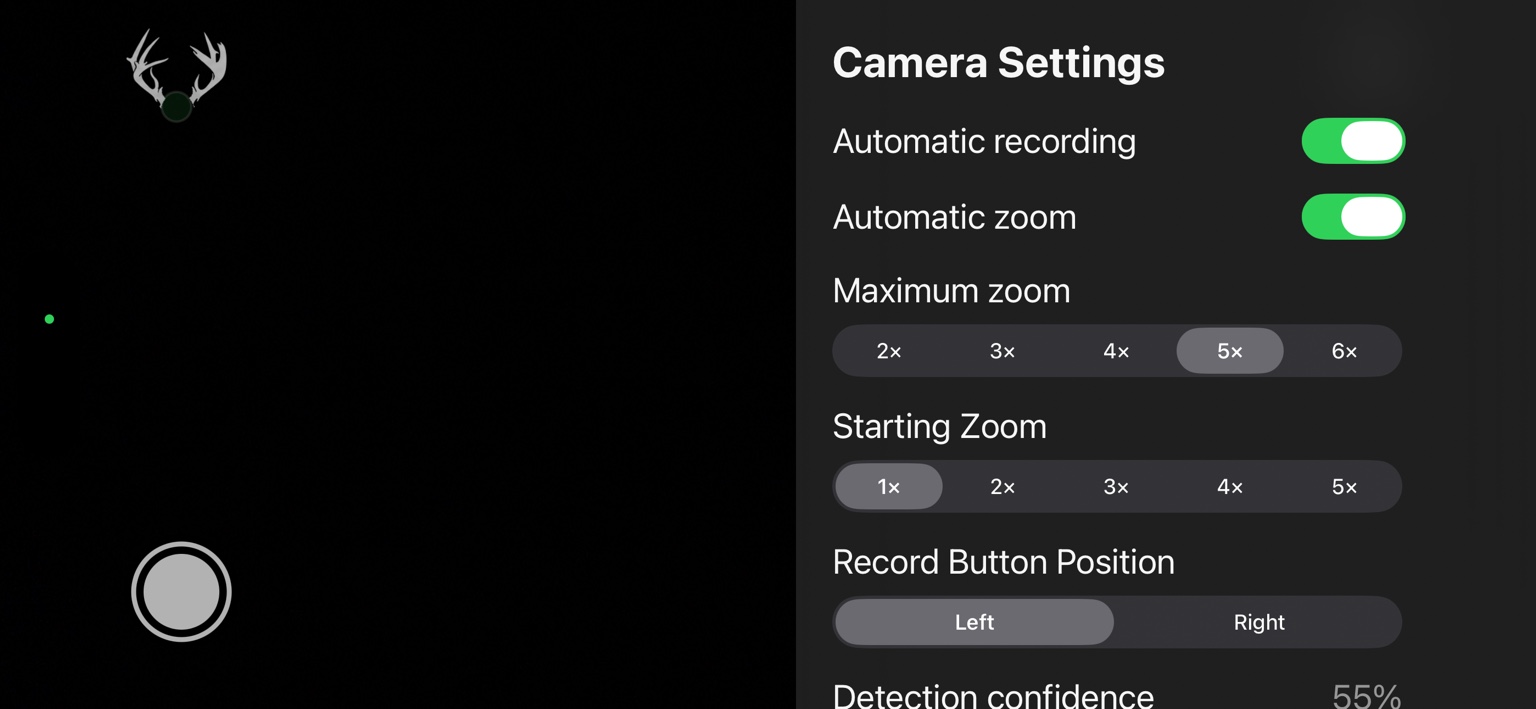
When enabled, BuckLock starts recording after a deer passes the detection and verification settings. Turn it off when you want manual recording only.
When enabled, BuckLock smoothly zooms from Starting Zoom toward Maximum zoom after detection, then smoothly returns to Starting Zoom when the automatic zoom cycle ends. Turn it off to keep the view at your selected starting zoom.
Choose 2×, 3×, 4×, 5×, or 6× to set the automatic zoom limit. Starting Zoom must not be higher than Maximum zoom. A lower maximum keeps more of the scene visible; a higher maximum makes the subject larger but narrows the view.
Choose the initial view and the view BuckLock returns to after automatic zoom. The available Starting Zoom choices stay at or below Maximum zoom. The screenshot shows choices from 1× to 5×, with Starting Zoom 1× and Maximum zoom 5× selected.
Scroll down in Camera Settings to adjust how certain BuckLock must be before treating an object as a deer. The screenshot shows 55%. Lower values are more sensitive but may create more false detections. Higher values are stricter but may miss distant or partly hidden deer.
Choose 0.5, 1, 1.5, or 2 seconds for how long BuckLock must continue seeing a deer before automatic recording begins. The screenshot shows 0.5 sec. Shorter times react faster. Longer times help filter brief false detections.
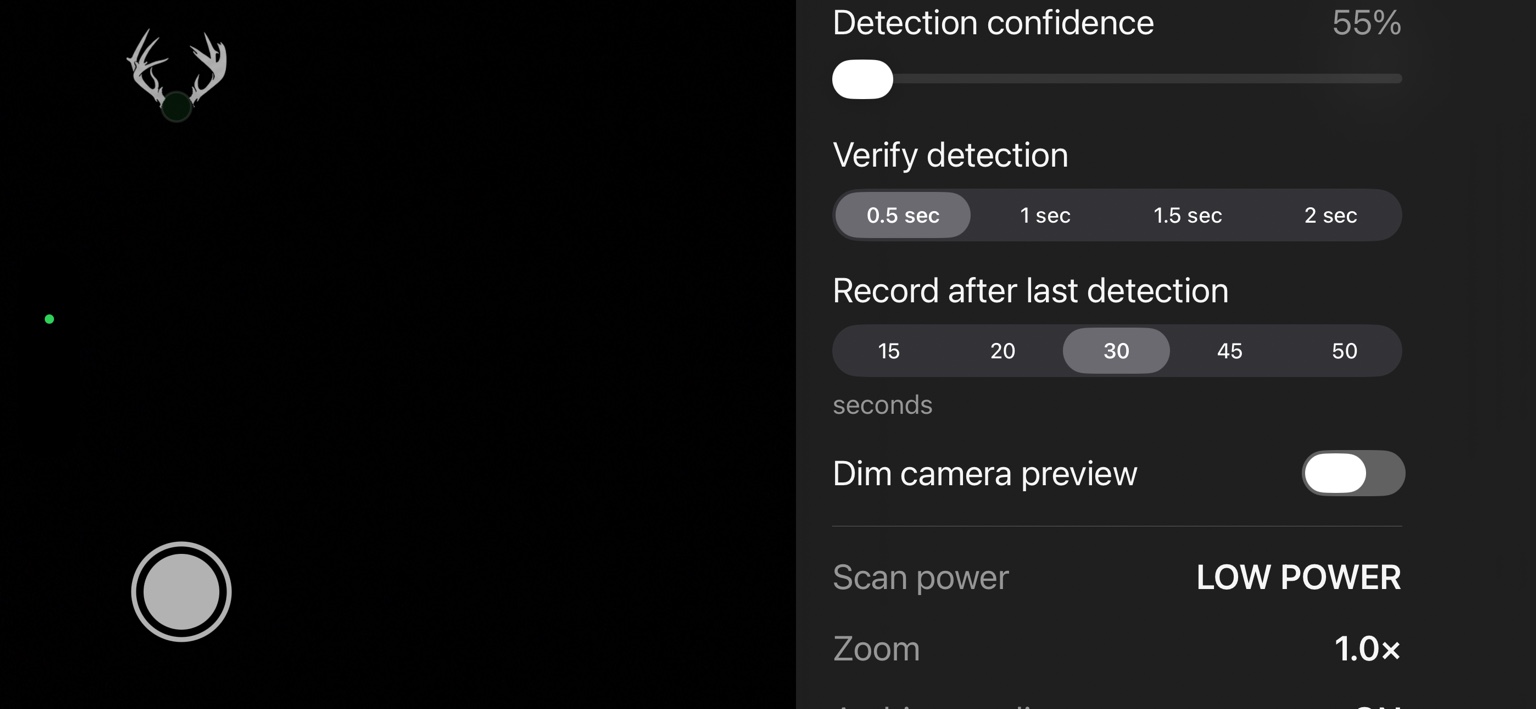
Choose 15, 20, 30, 45, or 50 seconds for how long automatic recording continues after the last detection. The screenshot shows 30 seconds. Longer times are useful when deer move behind cover, but they create larger video files.
Dims the on-screen camera view during use. This can reduce distraction in low light; it does not intentionally darken the saved video.
This read-only indicator shows the current detection-power state. The screenshot shows LOW POWER while BuckLock watches the scene.
This read-only indicator shows the current live zoom level. The screenshot shows 1.0×, matching the selected Starting Zoom.
| Problem | What to check |
|---|---|
| Video does not save | Confirm Photos permission is enabled and the iPhone has available storage. Make a short manual test recording. |
| Automatic recording does not start | Confirm Automatic recording is on. Lower Detection confidence slightly or shorten Verify detection, then test in good light. |
| Too many false recordings | Raise Detection confidence, increase Verify detection, and remove moving branches or fabric from the foreground. |
| Deer moves out of frame during zoom | Choose a lower Maximum zoom and begin with a wider field of view. |
| No sound in the video | Confirm Microphone permission is enabled and the case or mount does not block the microphone. |
| Battery drains quickly | Start fully charged, dim the preview when practical, reduce screen brightness, and consider an external battery for long sits. |